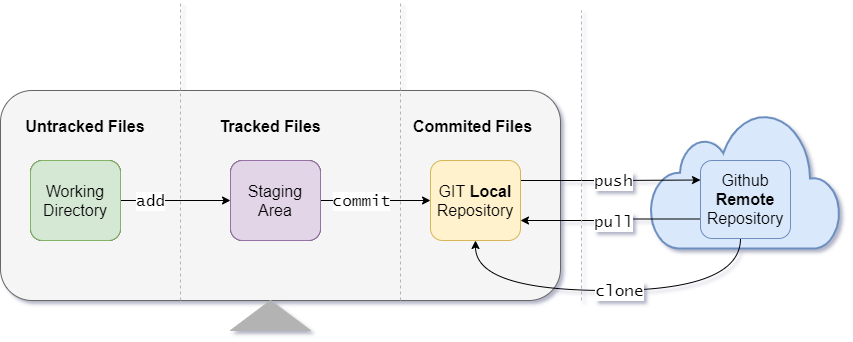
1.Make current folder a empty git repository :

git init
or
initialize new repo and set the name of default branch to main:
git init --initial-branch=main ( for git version 2.28 and above)
or
git init -b mail

2. config the git on local machine :

git config -l ( to check current configuration)
git config --global user.name "your name"
git config --global user.email "your@email.com"
To check:
git config user.name
git config user.email

To check all default configuration:

git config --list

Set Default Branch name as main:

git config --global init.defaultBranch main
(To check default branch : git config init.defaultBranch)

3. To establish connection to existing remote repository:

git remote add origin https://github.com/yourID/repo_name.git
(“origin” is name given to “https://github.com/yourID/repo_name.git “)

To Check status: git remote -v

4. Add all changes in staging area (Index):

git add .

5. To check the status :

git status
or
git status -s
( M = modified, A = added, ?? = untracked)

6. To commit the changes :

git commit -m "first commit"

7.push the changes to main/master remote branch :

git push -u origin main (or)
git push --set-upstream origin main (or)

git push origin HEAD:main
Pull changes from remote repository to local:

git pull origin master
Working Directory / Folder

To discard upstaged changes in the tracked file of working folder :

git checkout <file.name>

Remove file from git tracking (from working folder and staging area):

git rm <file.name>

git rm -r .

Remove file from working folder only and not from staging area :

rm <file.name>
Staging Area

To check files in staging area :

git ls-files

Stating changes which we want to revert (opposite of add)

git reset head <file.name>

To commit directly without staging area:

git commit -a -m "commit message"

Remove file from staging area only but not from working folder :

git rm --cached <file.name>

Restore

git restore –staged <file.name>
Local Repository

Undo commits at Repository level

git reset --<mode> <commit id>

modes:
1. –soft : To discard change in local repository only. This will not touch the staging area as well the working library/folder.
2. –mixed : Default mode. To discard changes in local repo as well from staging area. This will not touch the working library/folder.
3. –hard : To discard everything from local repository, staging area and working library/ folder/ directory.

Discard changes in Working/Staging or Local repo
Mode
Working Folder
Staging Area
Local Repo
--soft
No
No
Yes
--mixed
No
Yes
Yes
--hard
Yes
Yes
Yes
Git Branching

To view available branches

git branch

output is: * master (where * indicates active branch)

To create new branch

git branch <branchName>

To change branch

git checkout <branchName>

Create new branch and switch it new branch

git checkout -b <branchName>

Delete branch

git branch -d <branchName>

Go to previous branch

git checkout -
Merging

Fast forward merge: only change happen in child branch, No change in Parent branch

Recursive merge /Three way merge : simultaneous changes happen in parent branch as well child branch

To merge child branch to parent(Main) branch :

git merge <child Branch Name>
Rebase

From child branch:
git rebase master
From Master branch:
git rebase <nameOfChileBranch>
Merge:
It is easy to track parent (master) and child commits using commit IDs.
A new merge commit is created by Git to resolve conflicts.
Rebase:
After rebase, the child commits get new IDs, making it harder to trace changes done in child branches.
No merge commit is created; history is rewritten instead.
Status

git status

git log

git log --oneline

git log --online --graph

git log --online --graph --decorate
To rename a file or move a file

git mv <file.name>

To clone a repo:

git clone <url>

Generete public and private key

ssh_keygen
Create a .gitignore file:

nano .gitignore

list the pattern of files or directories to be ignore:

$echo ‘*.log’ >> .gitignore
$echo ‘built/’ >> .gitignore
Steps to Keep Only the Latest Commit

1.Reset your branch to the latest commit
git reset –soft $(git rev-list –max-parents=0 HEAD)
2.Create a new commit with all current changes
git commit -m “Initial commit with all changes”
3.Force push to GitHub
git push origin main –force